Set up your Microsoft 365 sign-in for multi-factor authentication
Description
Multi-factor authentication (MFA) is a security feature that adds an extra layer of protection to your Microsoft 365 account sign-in. With MFA, you need to provide two or more verification factors to access your account, such as a password and a dynamically generated verification code provided by an authenticator app or sent to your phone. This helps prevent unauthorized access to your account, even if someone obtains your password.
- Sign in to Microsoft 365 with your work or school account with your password like you normally do or visit https://aka.ms/mfasetup
- After you choose "Sign in," you'll be prompted for more information. Choose "Next."
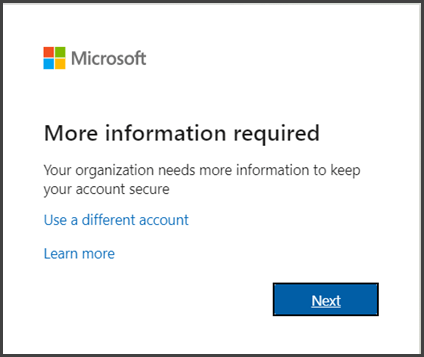
- The default authentication method is to use the free Microsoft Authenticator app. If you have it installed on your mobile device, select Next and follow the prompts to add this account. If you don't have it installed there is a link provided to download it before proceeding to next step.
- Choose "Next" to continue
- Open the Microsoft Authenticator app on your mobile device, and select the option to add a "Work or School Account."
If you freshly installed the application once you open it you will see a screen where you should choose Work or School Account.
If you already had the application installed then you should click "+" on the upper right corner and add a Work or School Account. Picture below for your reference - Choose Scan QR code
If you are asked to give permissions to the app to use your camera, choose "Always allow" or "Allow while using the app." - Next, scan the QR code that appears on your computer screen using the camera on your mobile device.
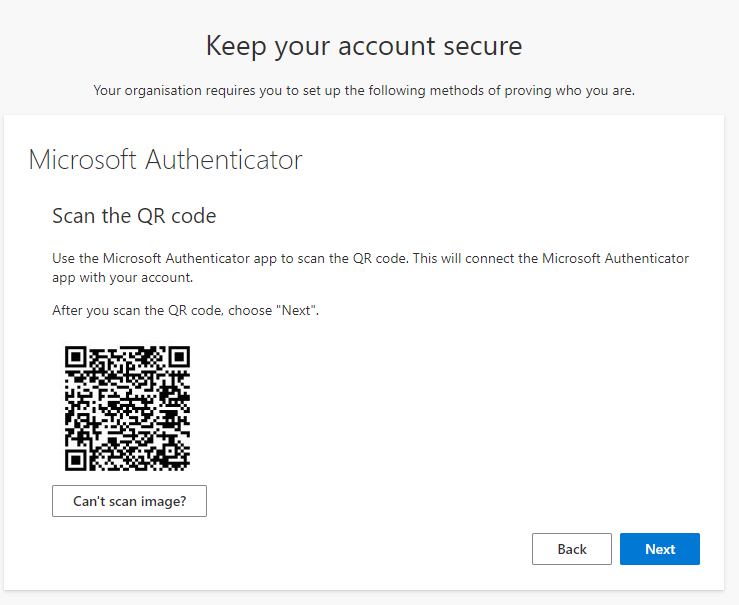
8. Once you scan the QR code, click next on your computer screen. You will receive a notification on your Microsoft Authenticator app to approve the connection. Click "Approve."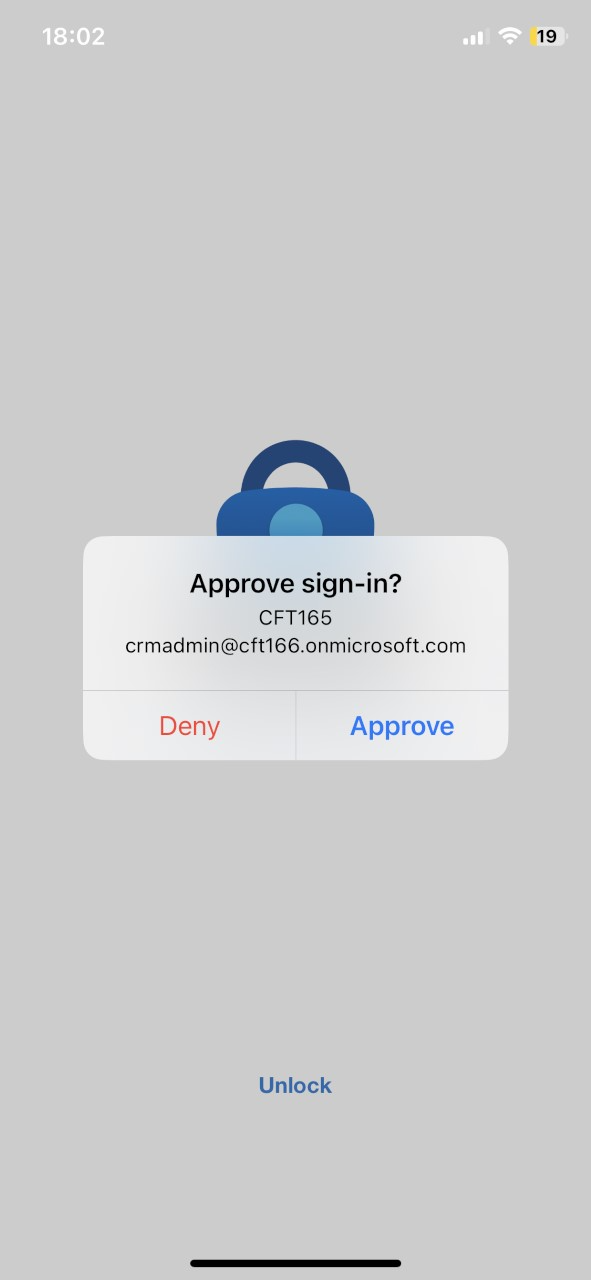
9. Once you approve the connection you will see the following screen and the confirmation. Click next.
10. You have completed the instructions to specify your additional verification method. The next time you sign in to Microsoft 365, you'll be prompted to provide the additional verification information or action, such as typing the verification code provided by your authenticator app or sent to you by text message.
Troubleshooting Tips:
If you encounter any issues while setting up MFA, try the following troubleshooting tips:
- If you are having trouble scanning the QR code, try adjusting the lighting or distance between your mobile device and the computer screen.
- If you are not receiving notifications on your Microsoft Authenticator app, make sure your device is connected to the internet and that you have enabled notifications for the app.
- If you are having trouble approving the connection, try closing and reopening the Microsoft Authenticator app, or restarting your device.
Alternative Authentication Methods:
While we recommend using the Microsoft Authenticator app, there are other authentication methods available for MFA, including SMS text messages or hardware tokens. Contact your organization's administrator for more information on alternative authentication methods.
By following these instructions and troubleshooting tips, you can set up multi-factor authentication for your Microsoft 365 account and add an extra layer of protection to your account sign-in.